
I found it hard to distinguish between ".stl", ".step", ".3mf" and ".gcode" files since all of them are set to open with Bambu Slicer per default. Always switching between "Sort by filetype" and "Sort by date" seems pretty inefficient to me. Therefore i have created a powershell script which checks and creates user defined registry associations which are then used to show different icons for the same application.
I then took the original Bambu Slicer logo from its home directory and simply changed its background color. You can see how windows does it in this example:
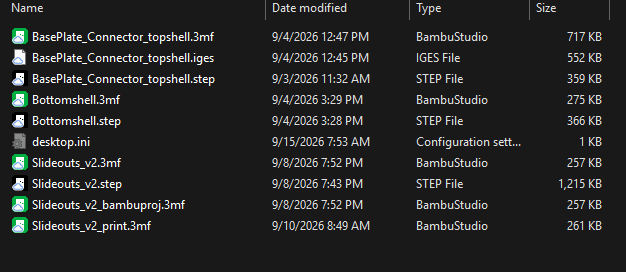
As you can see "Windows Explorer.exe" does show ".step" files with a custom "black bambu" icon. Still it sorts all files for last modification date which is a must for me.
If you want to use this aswell everything is attached in this notepage.
Step-by-step:
- check (for your safety) and run the code from "icon_software_linking.txt" within an elevated Powershell session. This creates individual filetype associations for every filetype which is linked to bambu slicer - dont close your powershell session yet
- download the icon_changed.zip and extract it - after changing your icons do not delete this folder
- copy the code from apply_Icons.txt and adapt it for the filetype you want to change and point it towards the path of the icon you want to apply